

Reading is the cornerstone of everything we do in elementary school. But as any PK–4 educator knows, running small guided reading groups while simultaneously monitoring oral reading fluency for twenty-five other energetic learners can feel like a high-wire juggling act.
Enter Read Along by Google.
Whether you are looking for an engaging, gamified way to encourage independent reading practice at home or you need targeted, actionable phonics and fluency data directly inside your instructional workflow, Read Along is a powerful tool to add to your teacher toolkit.
🎉 Important Update: When Read Along inside Google Classroom was first announced, it required premium Google Workspace for Education upgrades. Read Along in Google Classroom is now completely FREE and available to all Google Workspace for Education users! Because feature visibility is controlled at the administrative level, if you don’t see the Read Along icon inside Google Classroom or if the web app is blocked, be sure to reach out to your school or district IT department so they can toggle it on for your domain.
🎯 Option 1: Read Along in Google Classroom (Teacher-Led & Data-Driven)
The Google Classroom integration is built so that teachers can assign tailored reading material directly to individual students or reading groups. This is the best option for targeted reading practice and diagnostic uses.
Best of all, it provides rich, actionable literacy data—including real-time accuracy percentages, specific mispronounced words, and built-in comprehension checks—without requiring you to administer individual paper running records during every center rotation.
Related Post: Google Gemini: your elementary teaching assistant!
Step-by-Step: How to Use Read Along in Google Classroom
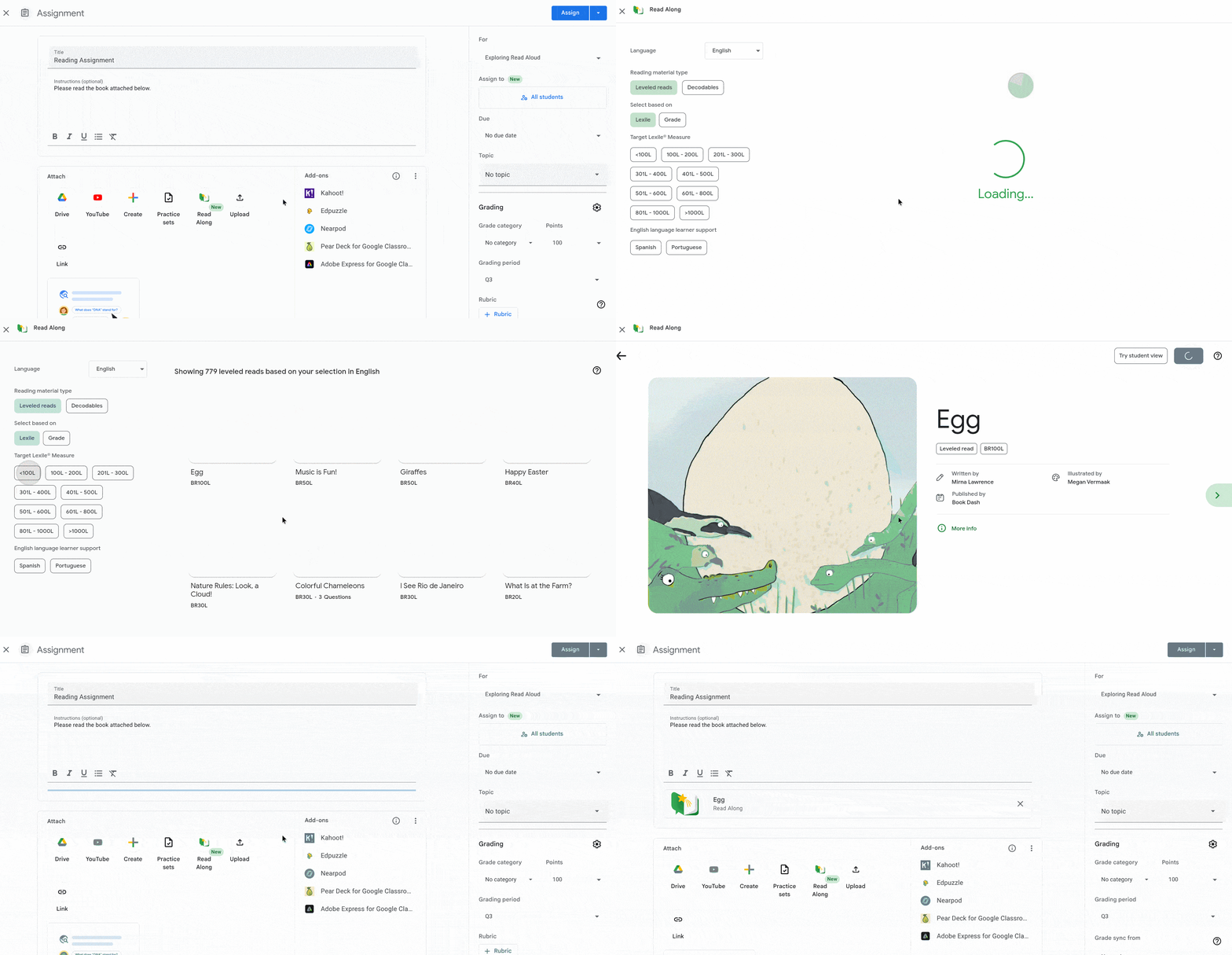
- Create an Assignment:Navigate to your Google Classroom class, select the Classwork tab, and click Create > Assignment.
- Select Read Along:In the assignment attachment options below the description box, click the Read Along icon.
👉 Note: if you do NOT see the Read Along icon in Classroom, contact your IT administrator. They may need to enable this feature for you. - Select or Build Your Reading Passage:
- Browse Leveled Content: Filter passages by Lexile Level (ranging from early emerging readers under 100 up through upper elementary at 1,000+).
- Target Decodables & Phonics: Choose decodable texts aligned with phonetic skill sequences through Google’s partnership with Heggerty (e.g., compound words, CVC patterns, blends, and contractions).
- Upload Custom Content: Have a passage connected to your current science or social studies unit? You can upload your own custom text files or generate custom reading passages tailored to your exact vocabulary objectives.
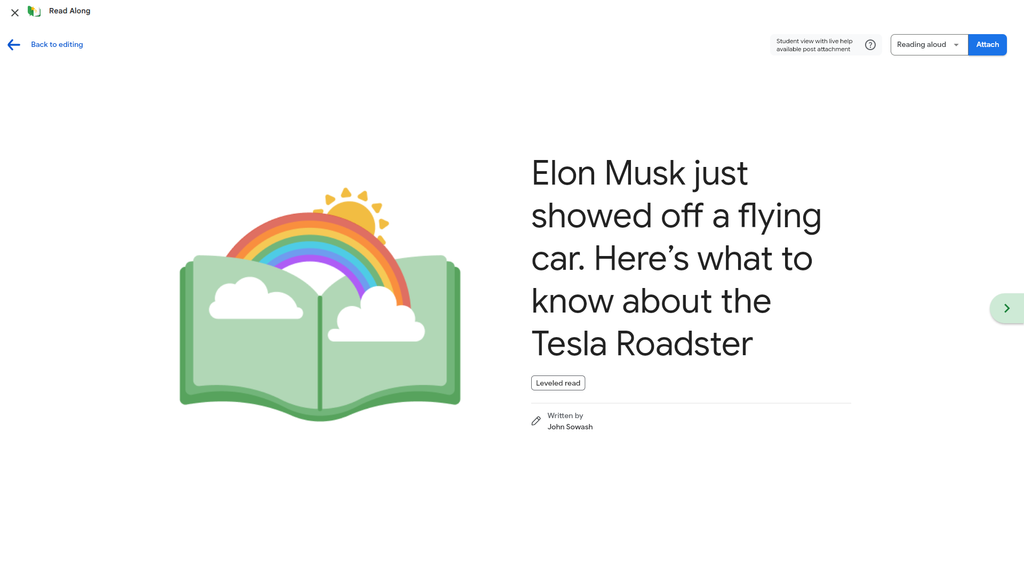
- Choose Your Reading Mode: Before attaching the book, look at the top-right corner of the book preview. Click the reading mode dropdown to pick the format that matches your instructional goal:
- 🗣️ Read Aloud Mode: Students read the text out loud into their microphones with real-time feedback and assistance from the built-in reading companion.
- 🤫 Silent Reading Mode: Students read through the book silently at their own pace without speech recognition.
- 🎧 Listening Mode: The reading assistant models fluent reading by reading the book aloud to the student as words highlight on screen.
- Preview & Attach: Review the passage, verify the vocabulary and skill targets, click Try Student View to preview the reading interface, and select Attach.
- Differentiate & Assign: Assign the task to the whole class, or use Classroom’s student selection dropdown to deliver differentiated texts directly to targeted reading tiers.
- Review Actionable Student Analytics: Once students finish reading aloud to their Chromebooks, open the completed assignment to explore:
- Overall accuracy rates and oral reading duration.
- Specific words missed or pronounced incorrectly.
- Class-wide analytics to identify phonetic patterns that need whole-group re-teaching.
- Student responses to literal and inferential comprehension questions.
🌟 Tip: For best results, it is recommended that you provide earbuds or headsets with microphones to each student. The Chromebook mic will pick up lots of background noises which will make speech detection difficult.
🎮 Option 2: The Standalone Read Along App & Web Experience (Student-Led & Gamified)
Purpose & Value
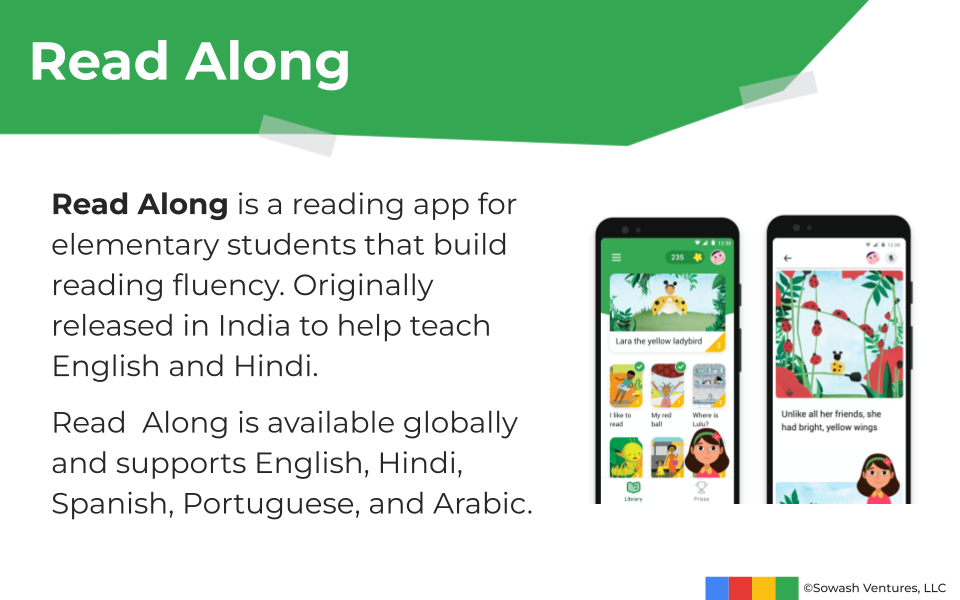
The standalone web experience (readalong.google.com) and mobile app are built for student autonomy by encouraging at-home practice that is parent-directed. Read Along can be access on any device (iOS, Android, Chromebook, etc). Students can use their school-assigned Google Account OR a parent Gmail account.
Related Post: Chromebooks in Elementary Classrooms
Note: teachers do NOT have access to student reading data through the stand-along app and cannot view student account information.
Step-by-Step: How to Use the Standalone Read Along Experience
- Open the Platform: Direct parents to download the Read Along mobile app on a personal phone or table.
- Sign In: Students can sign in with their school account OR a parent Gmail account.
- Browse the Library: Learners can visually browse hundreds of illustrated stories organized by topic, Lexile level, or favorite characters.
- Read Aloud with Diya: As students read aloud into their microphones:
- Words light up in blue as they are read correctly.
- If a student stumbles or pauses, Diya gently steps in to model the word or provide a prompt.
- Earn Stars & Track Daily Minutes: The system motivates students with stars, surprise present rewards, and mini-games (like speed-reading drills) designed to encourage a daily 10-minute reading habit.
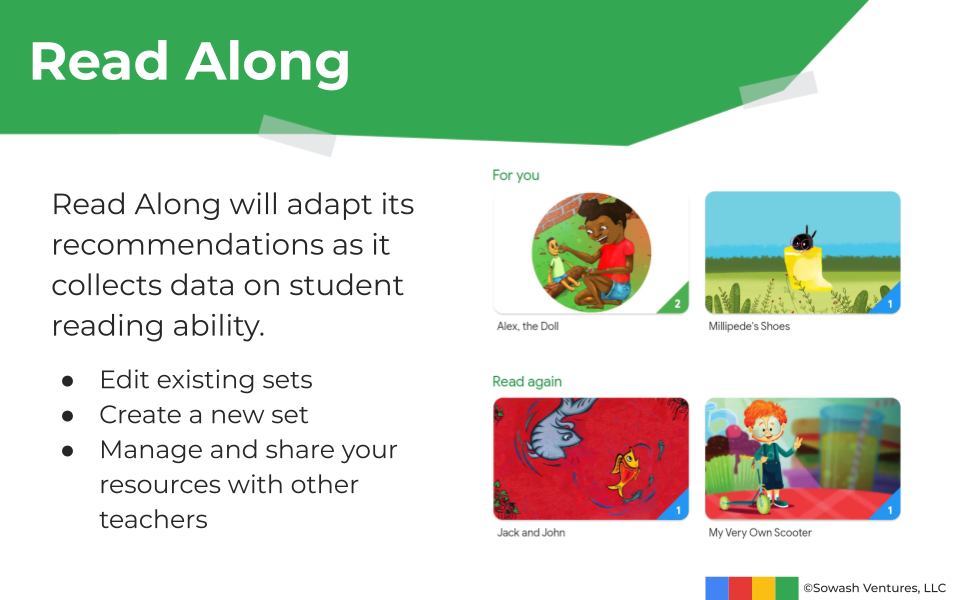
- Adaptive Growth: The platform automatically adapts to individual reading performance, suggesting easier or more challenging titles as students build confidence.
🌎 Multi-Language Support: Empowering World Language Learners
While Read Along is primarily used in early elementary classrooms, its multi-language capabilities provide immense value for older students and diverse language learners:
- Support for English Language Learners (ELL / ESL): Multi-language support allows emerging bilingual students to access in-context audio assistance, native-language support, and vocabulary reinforcement while reading English texts.
- Secondary World Language Learning: Middle and high school students taking introductory Spanish or other supported world languages can practice oral reading fluency in a low-anxiety environment. Reading aloud to Diya eliminates the embarrassment of speaking in front of peers, helping students build proper pronunciation and cadence independently.
- Upload Custom Content: The integrated reading library is designed for students in grades PK-4. If you plan on using Read Along for older students, you will want to upload your own custom text files or generate custom reading passages tailored to your exact vocabulary objectives.
Note: it can take up to one hour for the audio for a custom article to render.
💡 Practical Classroom Ideas for PK–4
- Independent Centers: Place Chromebooks with headsets at your literacy center so students can read independently while you lead small-group guided instruction without interruptions.
- Direct Phonics Reinforcement: Pair your weekly phonics rule with a corresponding Heggerty decodable assignment in Classroom.
- Cross-Curricular Fluency: Paste your own short paragraph about the water cycle or community helpers into the custom text builder to blend content learning with oral fluency.
- Home-School Reading Routine: Include the link to readalong.google.com in your classroom weekly newsletter for parents seeking structured, free reading practice at home.
Make EdTech your Friend!
Join more than 20,000 teachers who receive the Google EDU Update in their inbox each month. Get practical ideas and the latest updates to Chromebooks, Classroom, and more delivered to your inbox!


Reader Interactions